Clearnox uses client profiles to adapt follow up using reminder scenarios according to each client's category. Indeed, you won’t follow up with a major account, an export client, or a standard client in the same way.
To learn how to assign a profile to your clients, visit this page !
Add, modify and delete a profile
Actions to add, edit, delete, and assign a profile are available only to account administrators.
The list of client profiles is available from the menu Configure > Configure Client Profiles.
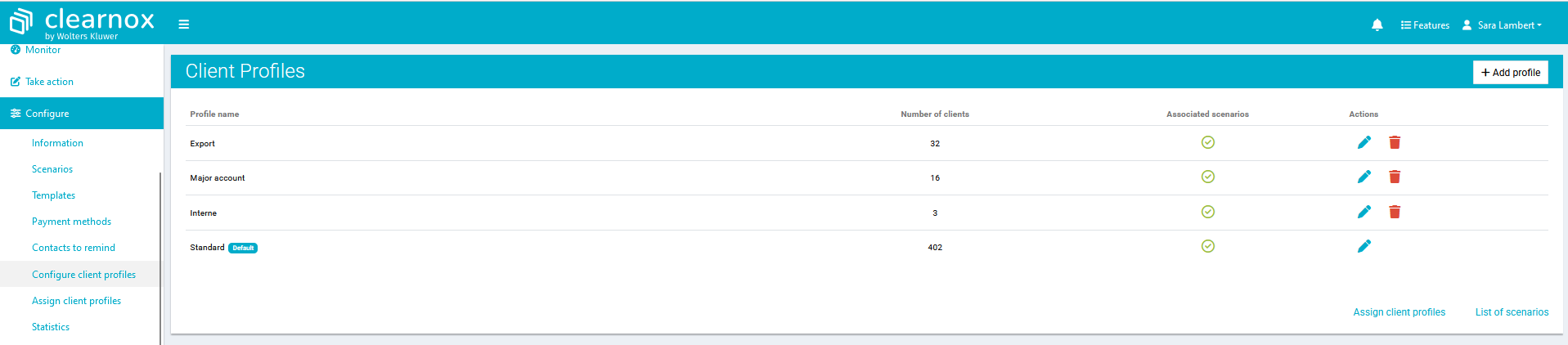
1. Create a new profile :
From the client profiles page, click on the 'Add profile' button :
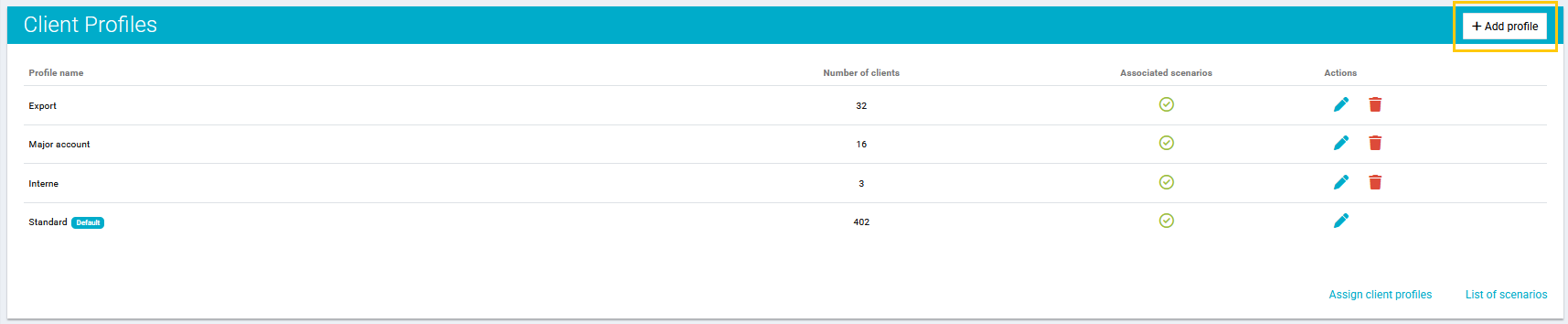
A new pop-up opens.
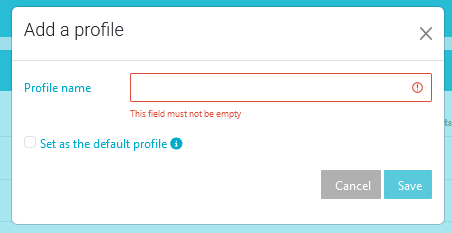
Enter the name of the new client profile.
Check or uncheck the option "Set as the default profile".
Click "Save".
2. Edit a client profile :
From the client profiles page, click on the pencil icon in the "Actions" column :
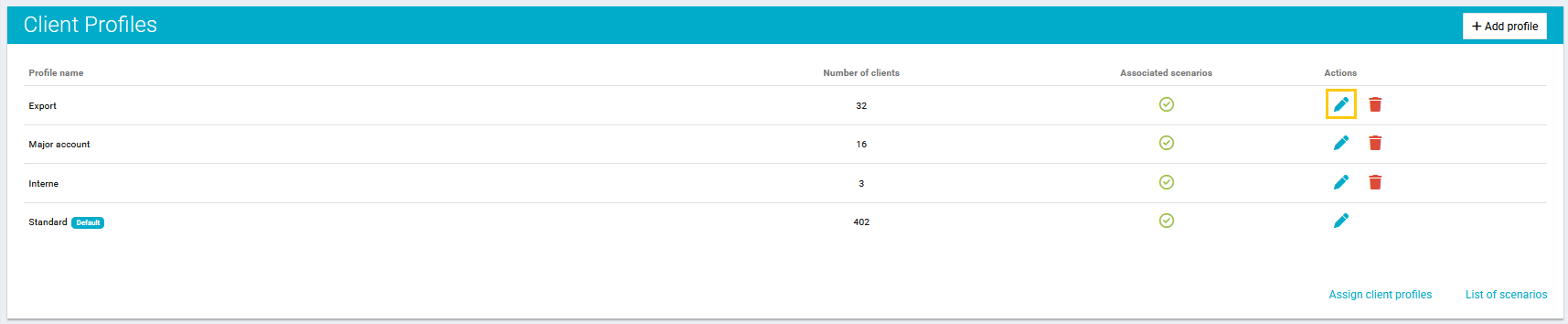
Enter the new name for this profile.
Check or uncheck the option "Set as the default profile".
Click "Save".
The new name will appear on all clients files associated with this profile .
3. Delete a client profile :
From the client profiles page, click on the trash icon in the "Actions" column :

If this profile is associated with one or more clients files, a pop-up will appear offering you the option to assign the clients with this profile to another existing profile before proceeding with its deletion.
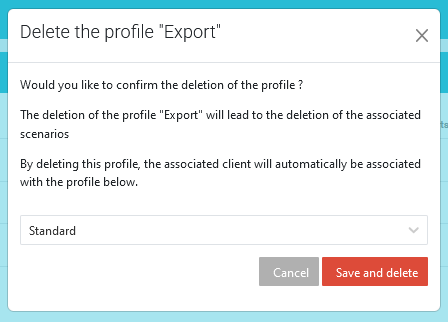
Cick "Save and delete" to confirm the deletion.
Use of the clients profiles in Clearnox
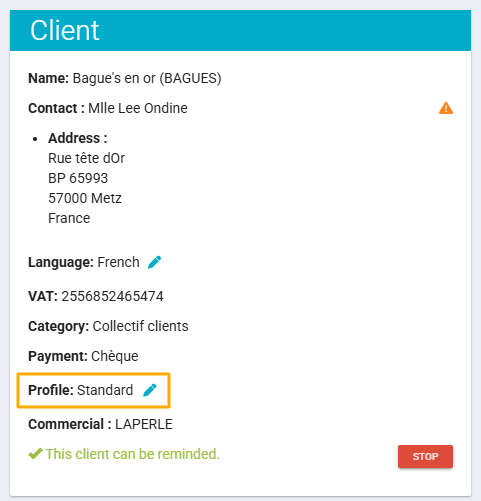
The client's profile is displayed on the client page when it is filled out.
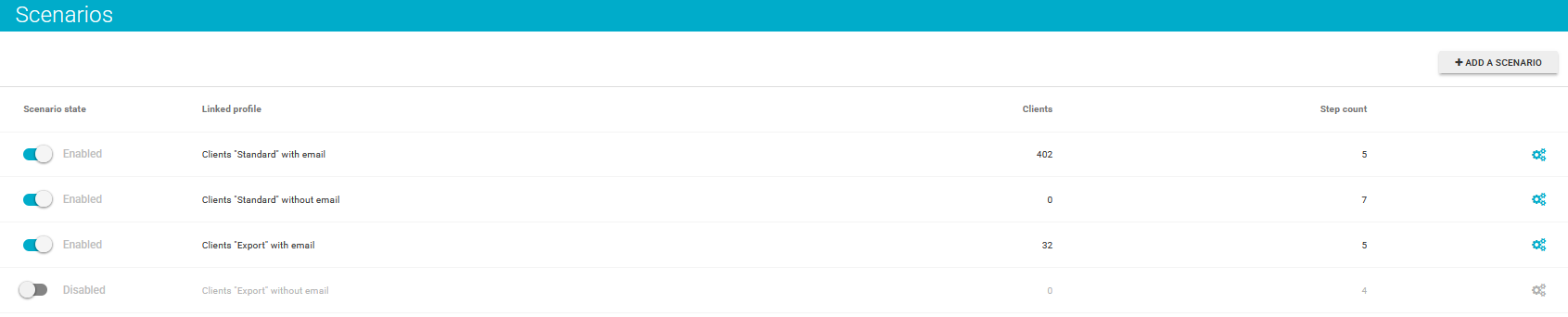
Each scenario is linked to a specific client profile.
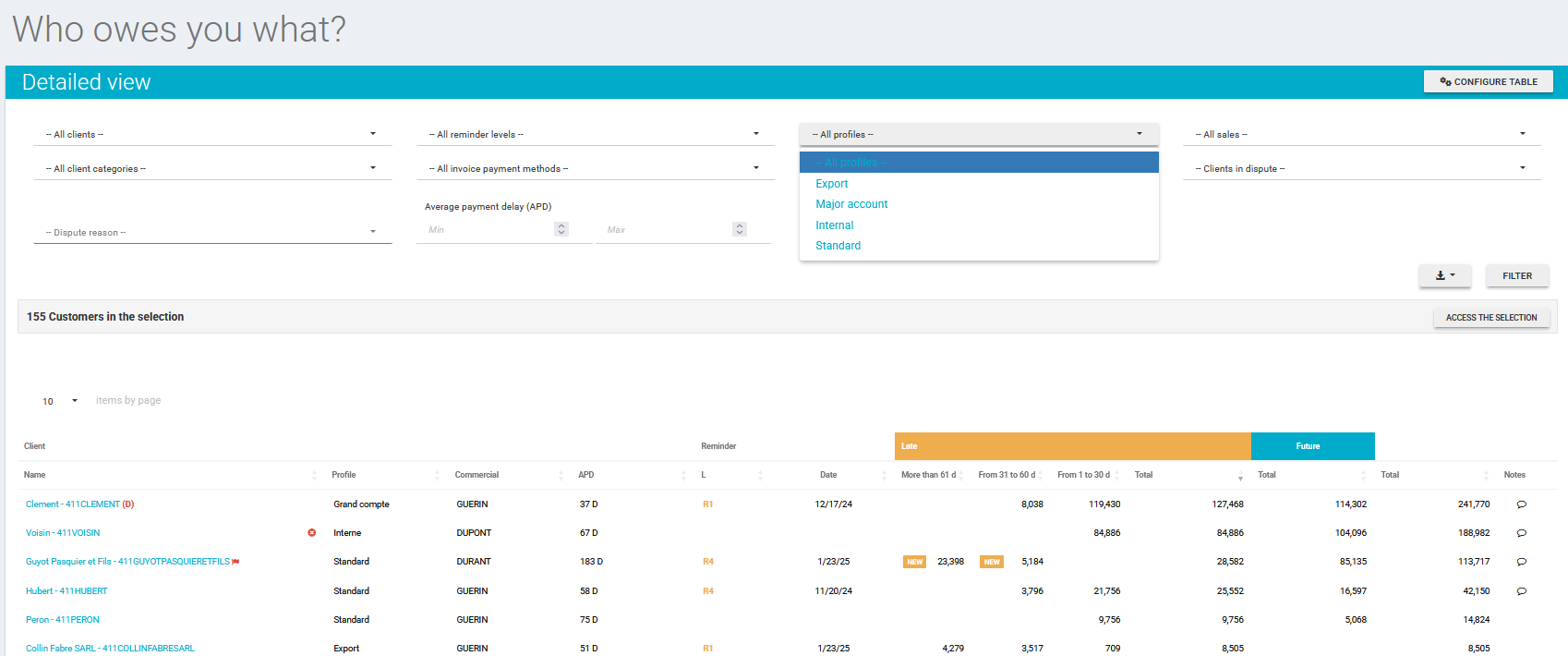
You can have an overview of the client's open amount by client profile. For example, on the "Who owes you what?" page, you can filter by client profile.
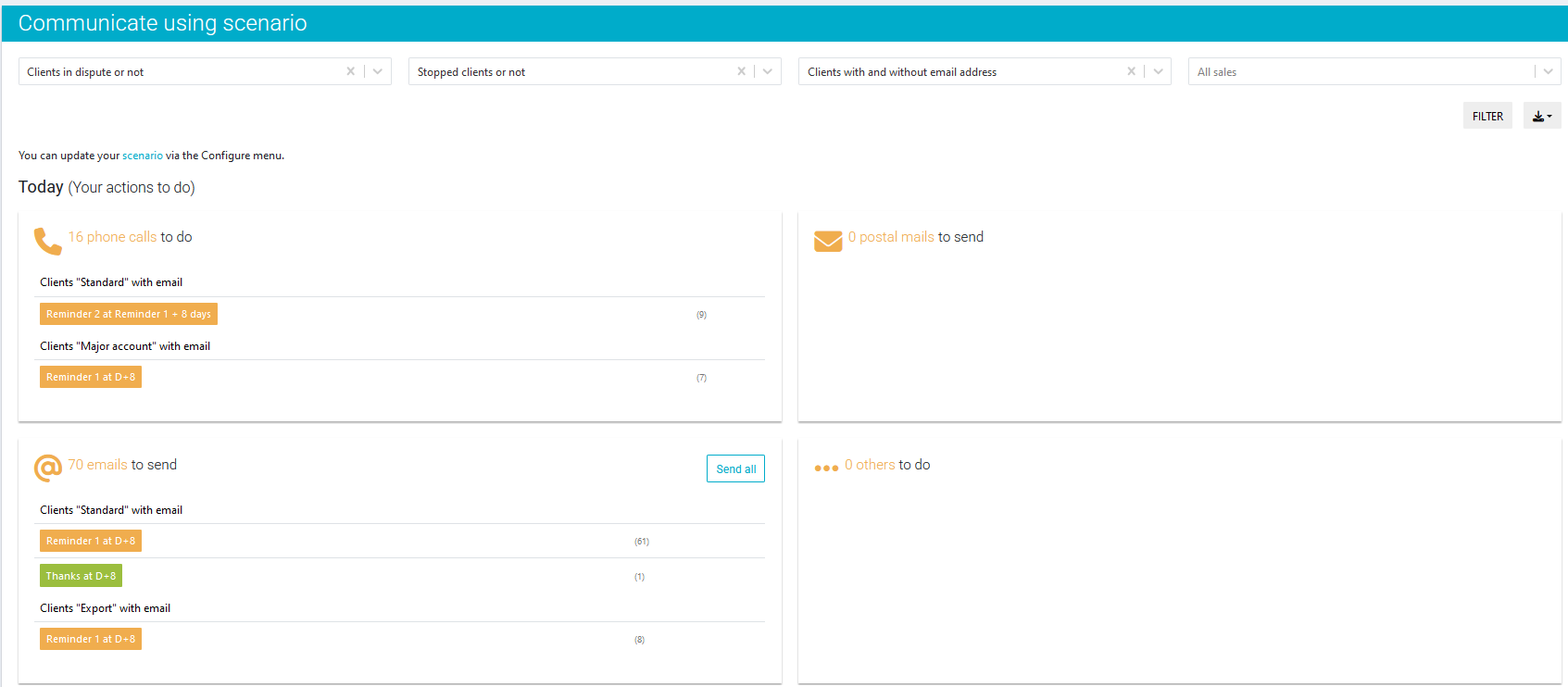
You can also view the todo tasks by client profile from the Take action > By scenario page.
Frequently asked question
Is a client profile always associated with a scenario ?
No, it is not mandatory to associate a scenario with a client profile.
A client profile not associated with a scenario allows that specific client to be excluded from automatic follow-ups or those based on a scenario, enabling "case-by-case" actions.
However, we recommend creating and set as defaut a "To be assigned" profile for each new customer added during the last data synchronization. This will make it easier to identify client to be assigned by searching for this type of profile.
To create a default profile, check the box "Set as the default profile" when creating a custom profile :
Was this article helpful?
That’s Great!
Thank you for your feedback
Sorry! We couldn't be helpful
Thank you for your feedback
Feedback sent
We appreciate your effort and will try to fix the article