You have created your reminder scenario and want to customize it. This article explains how to configure the steps of your scenario to adapt the reminder process to a specific client profile.
Configure your scenario steps
From the Configure > Scenarios page, click the pencil icon in the 'Actions' column.

You now have access to the configuration page for the selected scenario.
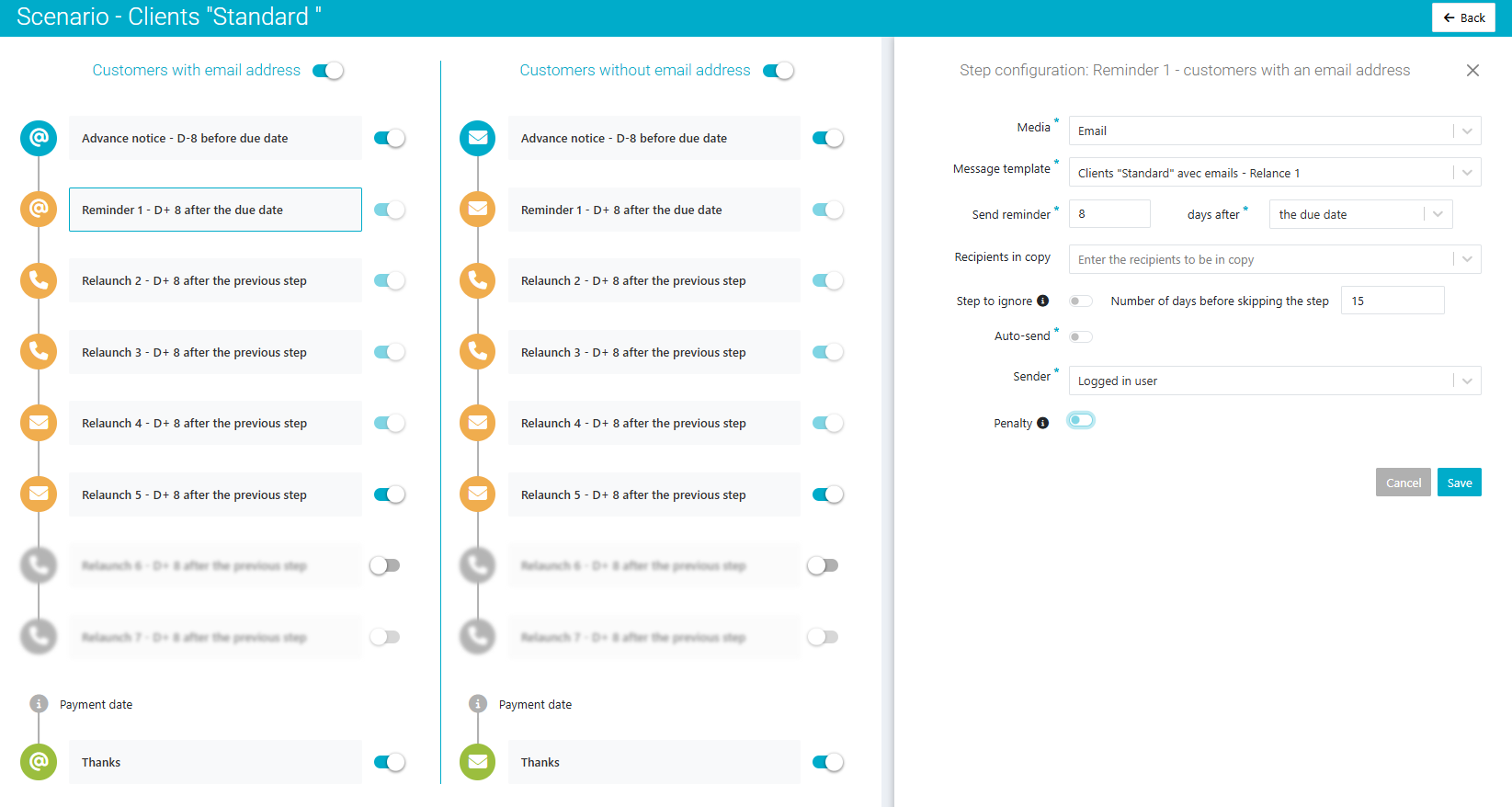
For each scenario, you can configure the reminder steps for clients with email (first column) and also for clients without email (second column).
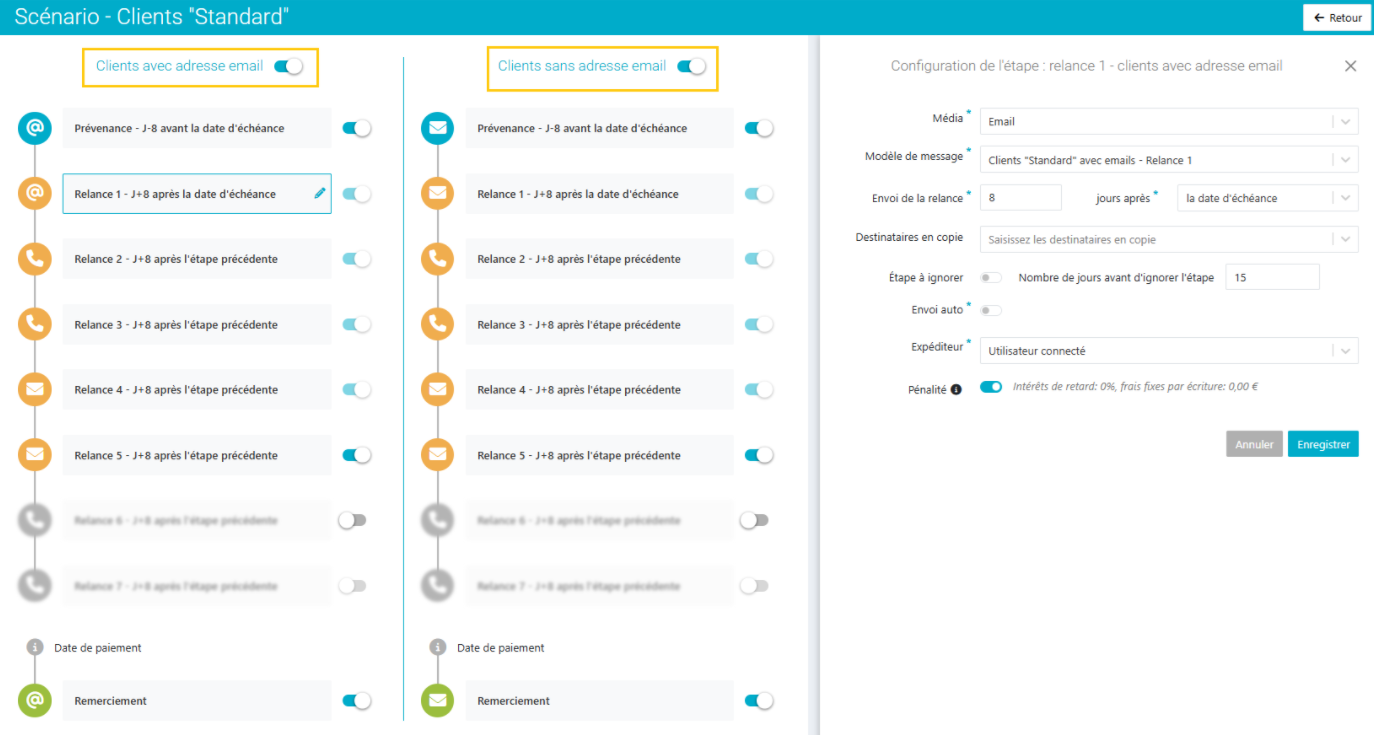
If it's not needed in the scenario you're configuring, you can choose to disable the scenario for clients with email or without. Use the toggle button at the top of each column.
For each step of the scenario you want to configure, hover over it and click. A side panel will appear offering several configuration options.
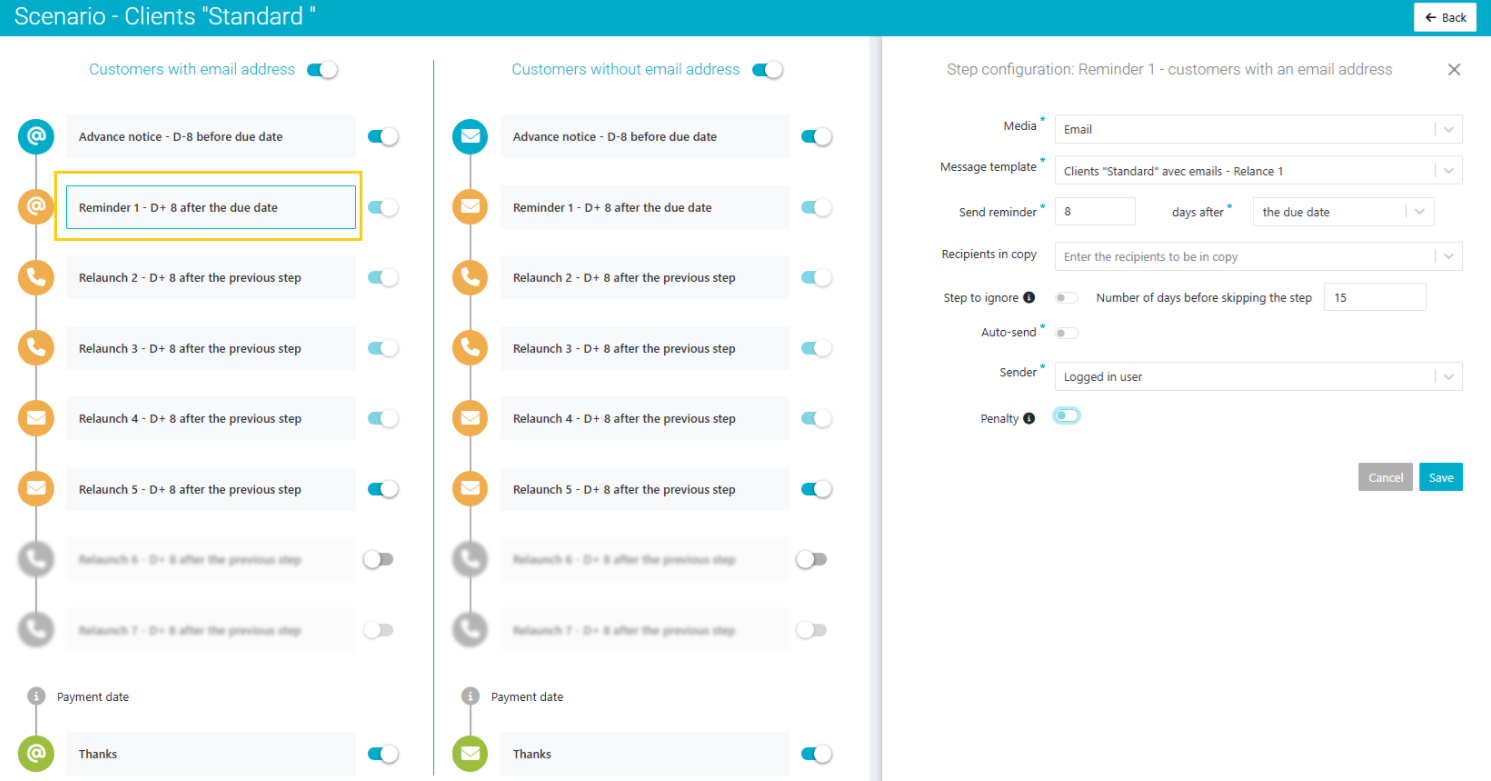
You can disable the steps that are not needed in your scenario by using the toggle button in front of the step in the left panel.
- You can activate up to 9 steps, with at least one active :
1 advance notice → this action allows you to inform your client that their invoice due date is approaching.
During reminders, credit notes are never included in advance notices. However, they are considered from the first reminder level.- Up to 7 reminders → overdue invoices will be reminded based on their reminder level. You will have several options to trigger the sending of reminders .
Thank you notice → to inform your client of the receipt of their latest payment.
The thanks notice will be triggered X days after the payment date. This payment must be matched with the invoice(s) in your accounting system.An invoice can be excluded from reminders if it has been settled with a credit note and the following option is enabled: 'Exclude unpaid credit amounts from follow-up and reminder processes'
For advanced customization of your scenario steps, refer to this page, which describes all available configuration options .
Once you have finished configuring your scenario, click the 'Save' button at the bottom right of the screen.
Activate endless reminder
When an invoice reaches the last step of the scenario, it reaches the maximum reminder level and is therefore no longer proposed.
To keep reminding these invoices until they are paid, you can enable the endless reminder option on the scenarios of your choice. This page is available from Configure > Scenarios > 'Edit the scenario…'. If you had already selected a step, simply click the cross at the top right to return to this screen.
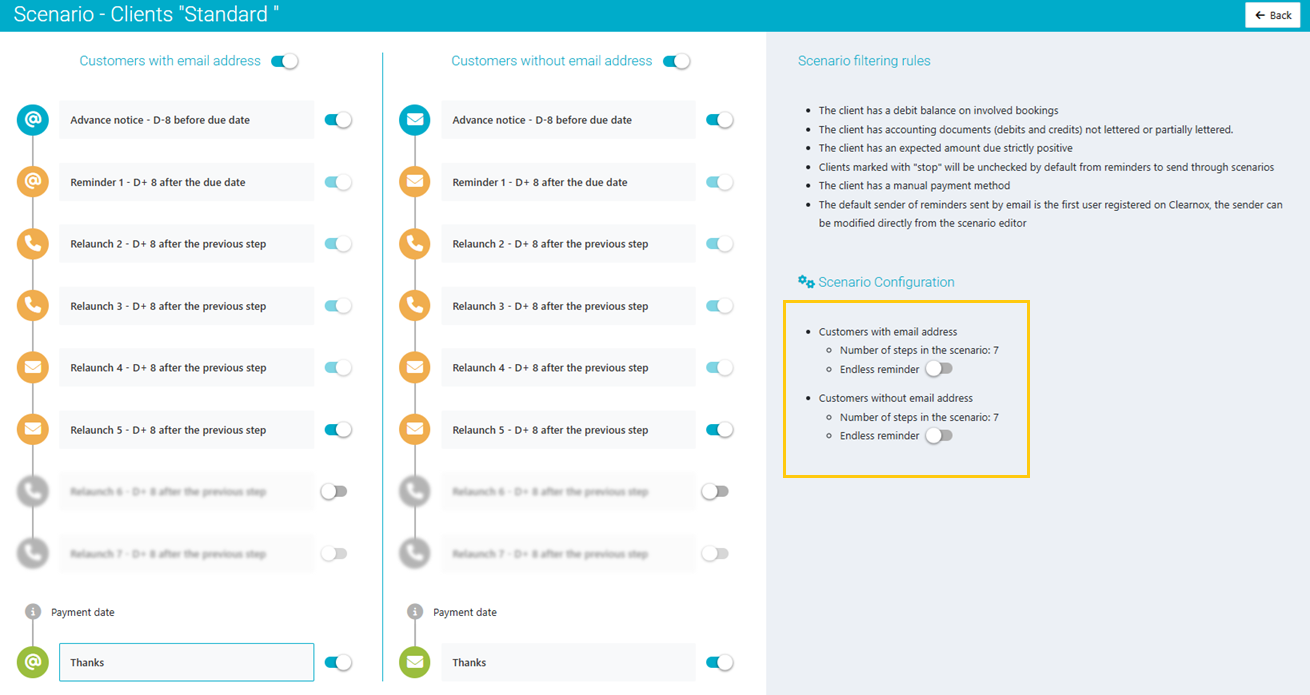
By enabling this option, the last step of the scenario will be proposed endlessly, whether it’s a reminder by phone, postal mail, or email. We recommend using the media email for the last step of the scenario, as it is easier to send in bulk.
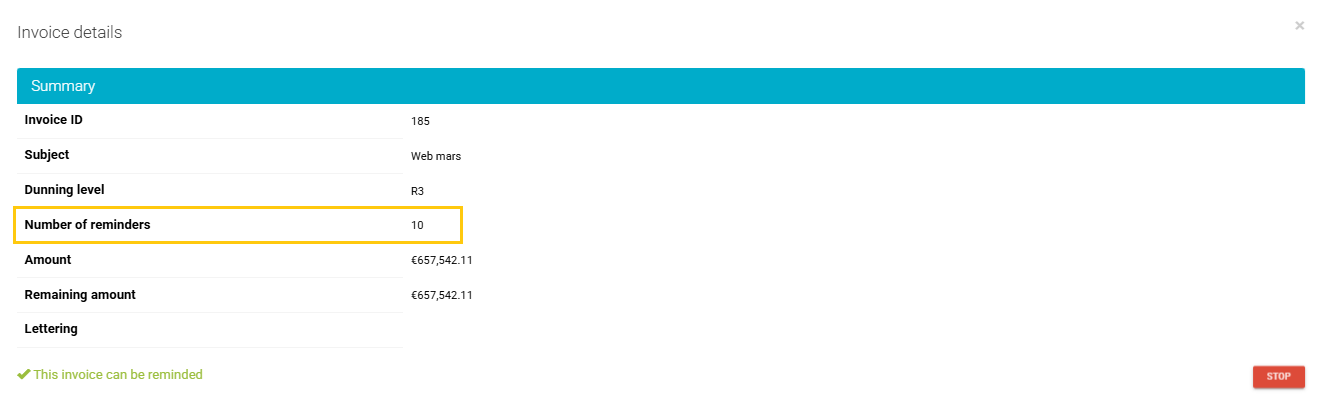
The endless reminder option does not change the invoice reminder level as it will remain at the scenario’s maximum level.
However, you can check the number of reminders for the invoice on its detail page, accessible from the account balance's client.
Was this article helpful?
That’s Great!
Thank you for your feedback
Sorry! We couldn't be helpful
Thank you for your feedback
Feedback sent
We appreciate your effort and will try to fix the article