Many configuration options are available to help you adapt your reminders to your collection processes.
From the Configure > Scenarios page, click on the pencil icon in the 'Actions' column.
The scenario configuration page will appear. Move your mouse over the step of your choice on the left side of the screen and click on it. A side panel will appear on the right side of the screen, allowing you to configure the scenario step.
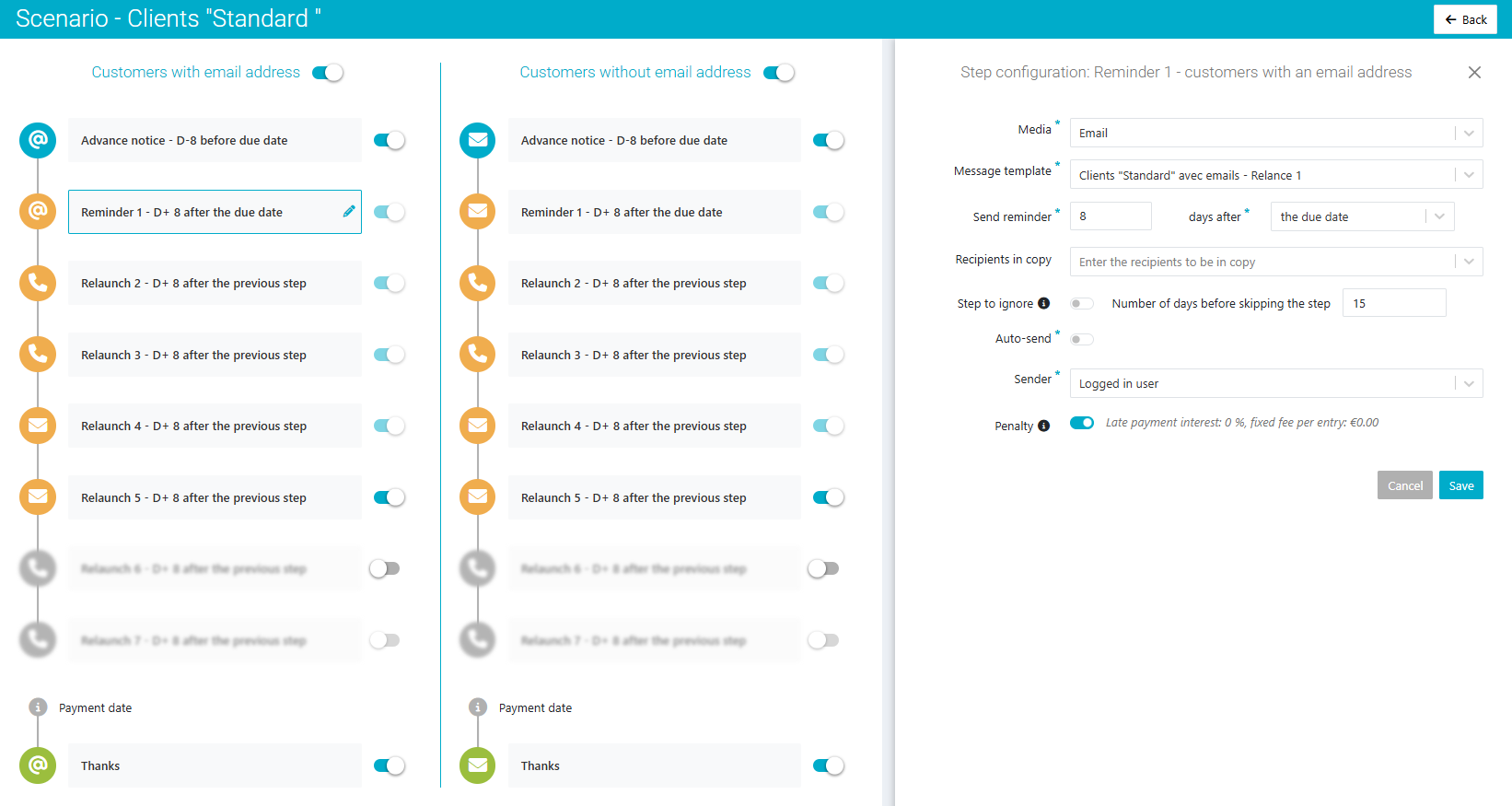
Media
- There are four communication channels, also called media in Clearnox: email, postal mail, phone, and 'other', used for example when the reminder was made during a meeting with the client.
Template
- For actions such as email or postal mail, you need to select a reminder template.
Sending the reminder
- The condition for triggering a step can be:
- x days after the previous reminder,
- x days after the due date, and after sending the previous reminder,
- xdays after the invoice date and after sending the previous reminder.
Special rules :

- When you choose to send the first reminder step x days after the invoice date, the advance notice step will be automatically disabled.

- All steps must share the same reference date for consistency. For example, in reminder 1, if you select the invoice date as the reference, all the other reminder steps will use the invoice date as their reference.

- The reminder is scheduled x days after the reference date, once the previous step has been completed, unless you decide to skip the previous step by enabling the 'Step to ignore' option.
Recipients in copy (emails only):
- In addition to the default recipients, you can add recipients in copy if escalation is required or if you simply want to share the information.
- The recipient in copy can be a user from your account or an email address you enter manually.
Step to ignore
- When a step requires a manual action, such as a phone call or an in-person meeting with the client, additional delays may occur. To avoid blocking the scenario, you can choose to skip this step after x days. The scenario will then automatically move to the next step.
Auto send (emails only)
This feature may not be available in the plan you have subscribed to. If you would like to benefit from it, please contact the sales team at accountmanagers@clearnox.com.
- If enabled, this feature automatically sends all reminder actions triggered at this step.
Sender
Choose the sender for each reminder step of type email and postal mail.
- For automatic steps (Auto send to 'Yes'), there are two sender fields to complete:
- Sender: used when you send the reminder manually from the 'Take action by scenario' page.
- Automatic sender: used when the sending is done automatically by the Clearnox automation.
- For manual steps (Auto send to 'No'), there is one field to complete: sender.
If no custom domain has been configured, the sender’s email address will always be noreply@clearnox.com, regardless of the sender selected from the list.
To use an email address from your own domain as the sender, please contact the sales team at accountmanagerclearnox@wolterskluwer.com to activate the custom domain feature.
NB : When the client receiving the reminder clicks on a reply button, their response will be sent to the sender configured in the scenario step, unless you have specified an email address in Configure > Advanced Options > Configuration of emails, in the field 'Reply email to sent emails'.
Penalties
- If you have configured late payment penalties on your account, you can enable them at certain steps in the scenario. On the 'Take action by scenario' page, a 'penalties' column will then appear as well as in the client portal.
- Enabling penalties at a scenario step does not automatically display them in the reminder sent to the client. To include penalties in the reminder, you need to add a tag that includes the penalties in your reminder template associated with that step.
Finally, save your configuration by clicking the 'Save' button located at the bottom right of the side panel.
Was this article helpful?
That’s Great!
Thank you for your feedback
Sorry! We couldn't be helpful
Thank you for your feedback
Feedback sent
We appreciate your effort and will try to fix the article