Effective dispute management is essential to preserve the client relationship and reduce payment delays. In Clearnox, you can mark a client or an invoice as disputed in order to track it, coordinate actions between stakeholders, and adapt collection actions until the dispute is resolved.
Create a client dispute
It is recommended to declare a client as disputed when an ongoing disagreement is likely to delay or block invoice payments.
From the client page, click the "Edit profile / dispute" button.
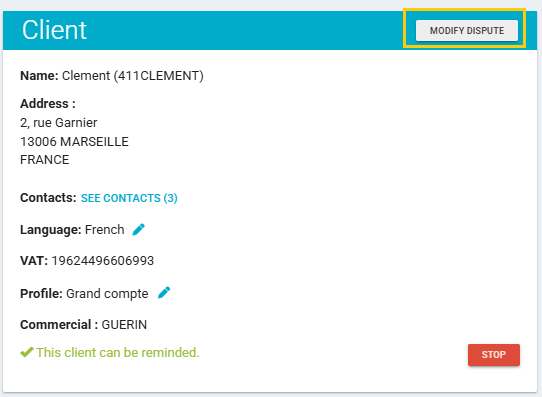
A pop-up window will appear where you can select "Yes" in the "Dispute" field.
We recommend specifying a dispute reason using the dedicated field, as processing workflows and required actions may differ depending on the type of dispute encountered.

After saving the changes, the dispute is displayed on the client page with the reason and the date the dispute reason was added.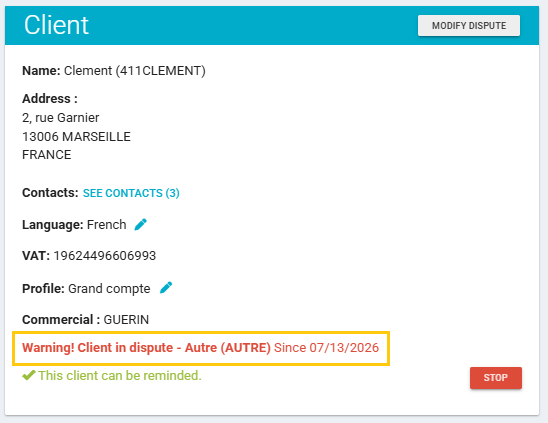
Create an invoice dispute
When a specific invoice is disputed by the client, without affecting the entire client account, you can mark the corresponding item as disputed.
From the account balance in the client page, click the "pencil" icon in the "Notes" column and select "Yes" in the "Dispute" field.
After validation, the dispute is displayed on the relevant line in the « Dispute » column of account balance. Hover over the indicator to view the user who created the dispute and the date it was created.

Once your disputes have been created, you can find and track them from a dedicated page. For more information, see the article Track your client and invoice disputes.
Do disputes impact reminders?
No, clients and invoices marked as disputed remain included by default in both individual and bulk reminders. They therefore continue to be considered when reminders are executed, unless you choose to exclude them manually.
However, disputed clients and invoices remain easily identifiable, making it possible to exclude them from reminders when necessary.
- On the « Take action by scenario » page, disputed clients are identified by the « D » indicator.
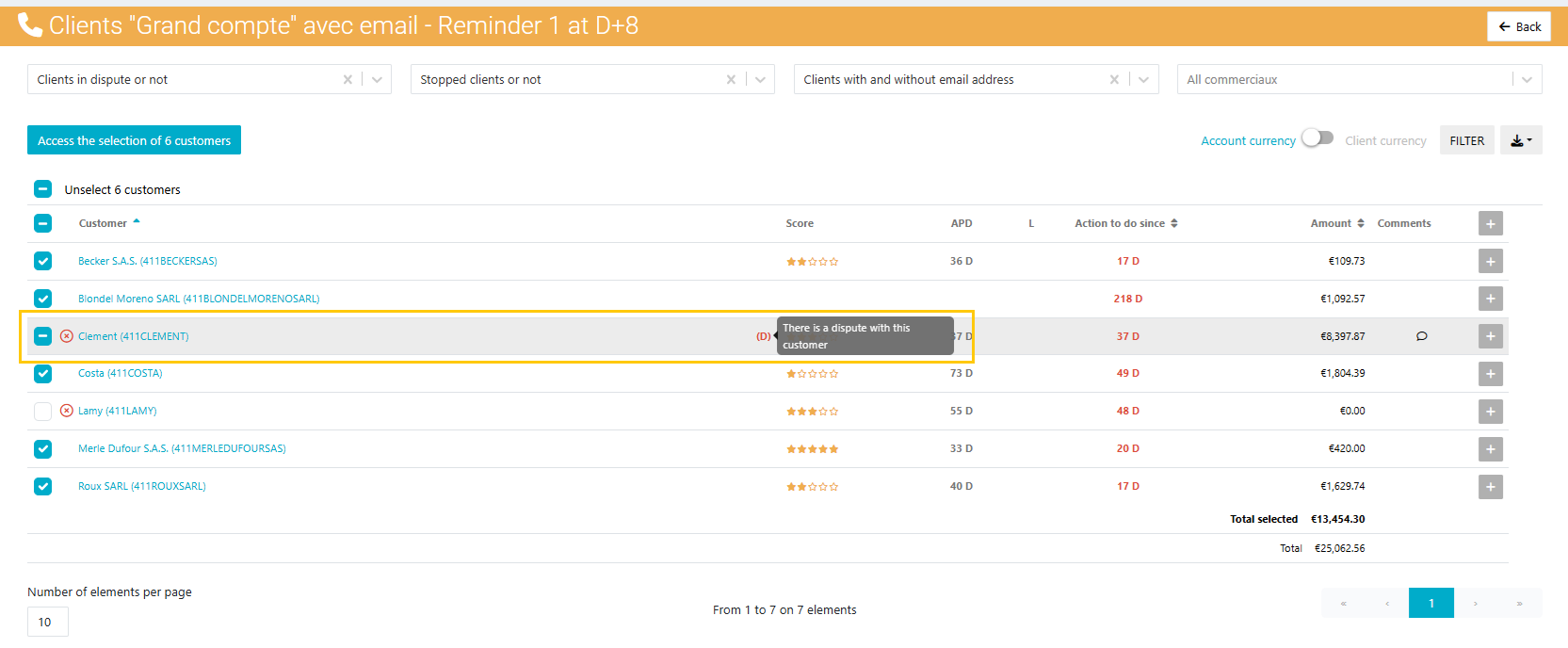
Disputed invoices are identified by a cross-shaped icon displayed next to the relevant invoice and the client name.

- On the "Take action by criteria" page, clients with either a client dispute or an invoice dispute are identified by a question mark icon.

Was this article helpful?
That’s Great!
Thank you for your feedback
Sorry! We couldn't be helpful
Thank you for your feedback
Feedback sent
We appreciate your effort and will try to fix the article