Effective dispute management is essential to maintaining client relationships and limiting late payments. In Clearnox, you can flag a client or an invoice as disputed to track the issue, coordinate the actions of the various stakeholders and adapt collection actions until it is resolved.
Create an invoice dispute
When a specific invoice is disputed, without affecting the entire client account, you can flag the relevant invoice as disputed.
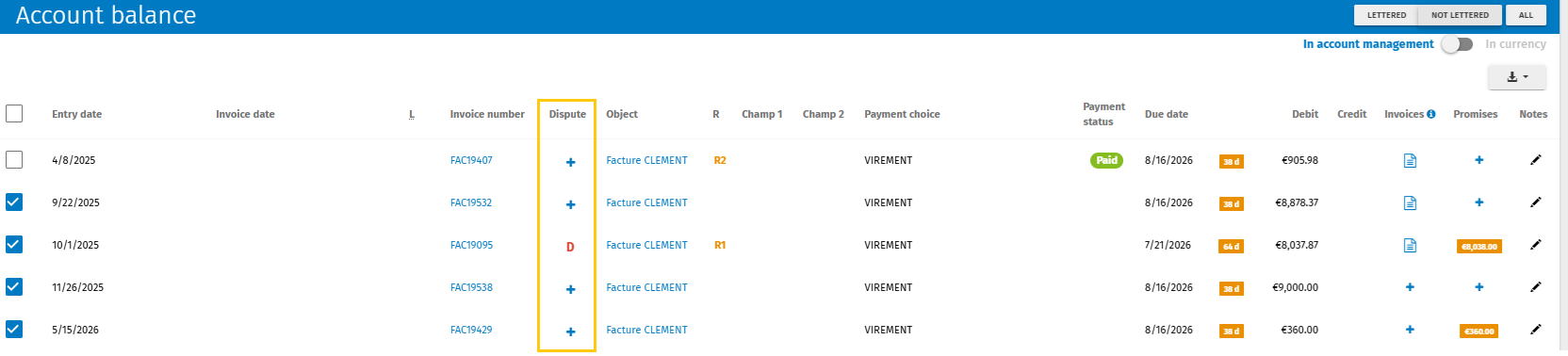
From the client's account balance, click the + icon in the Dispute column for the relevant invoice. If a dispute already exists, click the D indicator to view or edit its details.
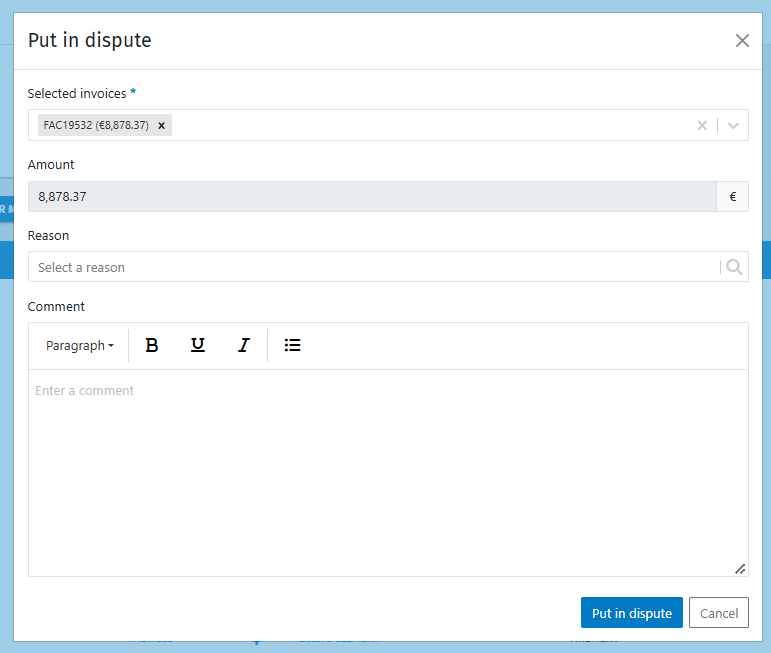
In the dispute creation window, you can:
- select a dispute reason;
- add a comment to provide more context or specify the actions to be taken.
You can also create disputes for multiple invoices at the same time. To do so, select one, several or all invoices from the account balance, then use the Actions > Create disputes menu.
Once confirmed, the dispute is displayed in the Dispute column for the relevant invoices in the account balance.

Edit or delete an invoice dispute
The information associated with a dispute can be updated at any time to reflect the progress of discussions with your client. Once a dispute has been resolved or is no longer relevant, it can also be deleted.
From the account balance, click the D indicator displayed in the Dispute column for the relevant invoice. You can then edit the dispute reason and/or comment. Remember to save your changes.
To delete the dispute, click the “Delete dispute” button in the bottom-left corner of the window.
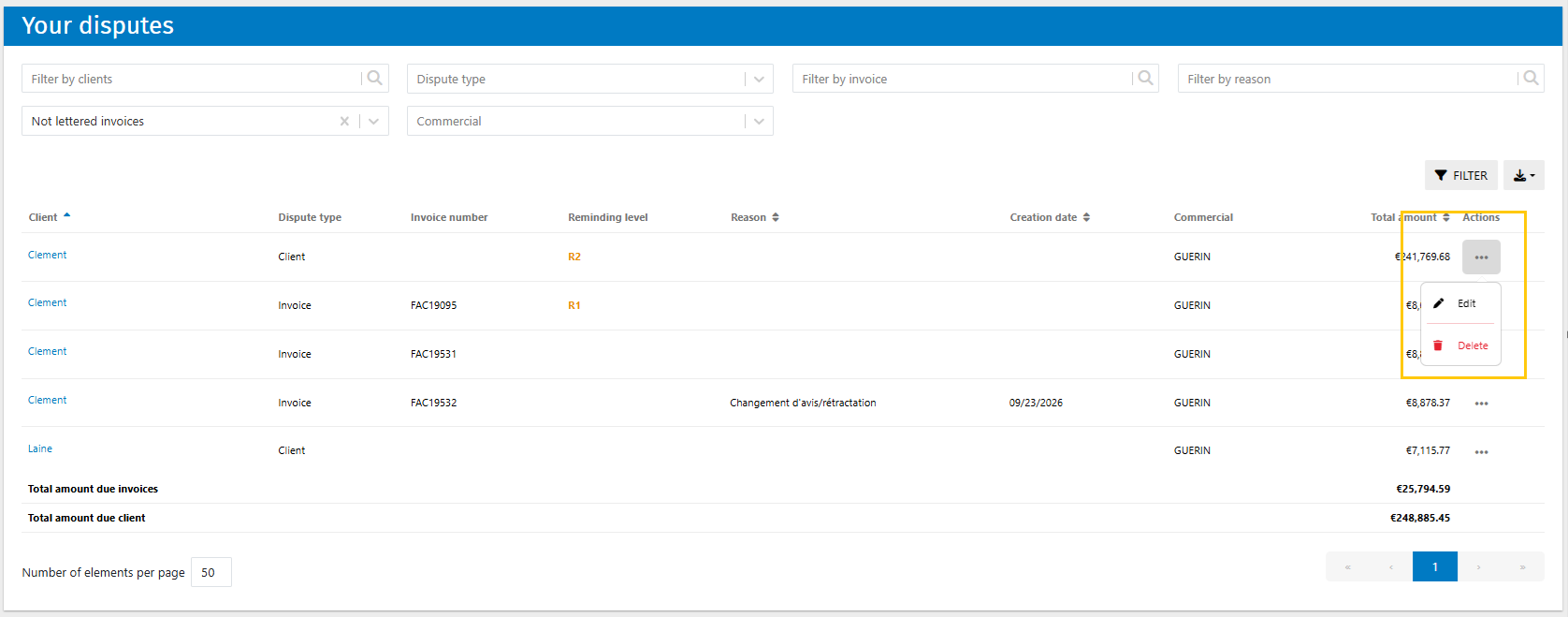
You can also edit or delete a dispute from the Monitor > Disputes page, using the actions available in the “Actions” column.
Do disputes affect reminders?
No, invoices flagged as disputed remain included by default in individual and bulk reminders. They are therefore still taken into account when reminders are sent, unless you choose to exclude them manually.
However, disputed clients and invoices remain easy to identify so that you can exclude them from reminders if necessary.
- On the Take action by scenario page, disputed invoices are identified by a cross-shaped icon displayed next to the relevant invoice and client name.

- On the Take action by criteria page, invoices with a dispute are identified with a warning.
Track your invoice disputes
Once you have created your disputes, you can find and monitor them from a dedicated page. To find out more, see the article Track your client and invoice disputes.
Was this article helpful?
That’s Great!
Thank you for your feedback
Sorry! We couldn't be helpful
Thank you for your feedback
Feedback sent
We appreciate your effort and will try to fix the article