When creating/editing your templates, you have the option to use tags in the subject and content. This list of tags allows you to insert variables configured to be automatically filled with your information. They always start and end with %.
Here is an example of a tag:
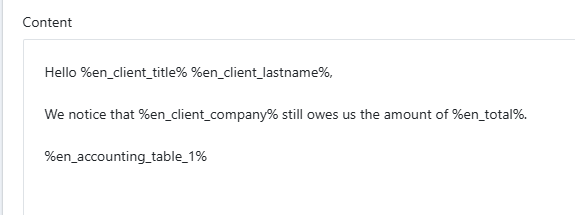
Hello %en_client_title% %en_client_lastname%, → will automatically give the salutation and the client's name
We notice that %en_client_company% → will provide the company name
still owes us the amount of %en_total%.→ will provide the total amount of the selected items
These tags also allow you to send preconfigured tables.
For example:
%en_accounting_table_1% → Table of selected items (invoice date or, if not available, entry date, description, debit amount, credit amount)
Which will appear in the template as:
Then as an email:
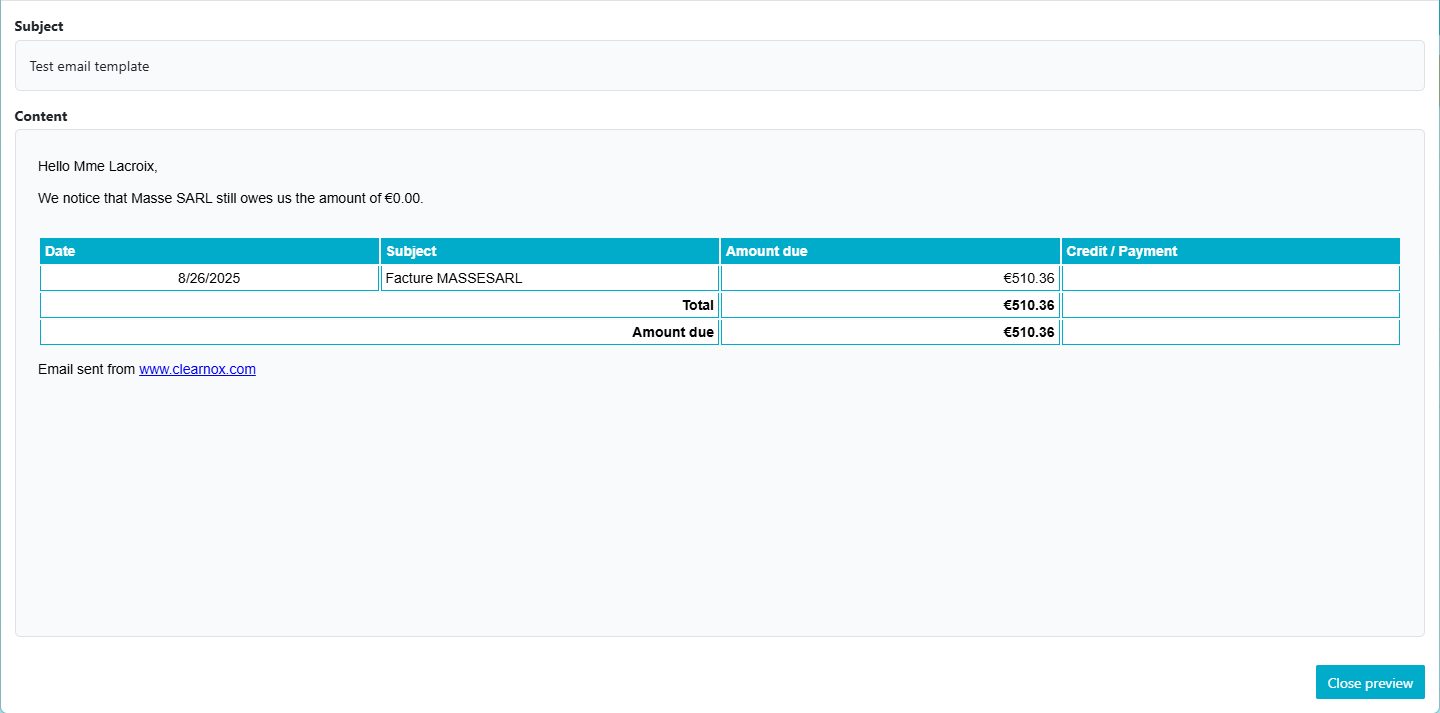
These variations exist in multiple languages, which affects how accounting tables are displayed (number format, dates, etc.).
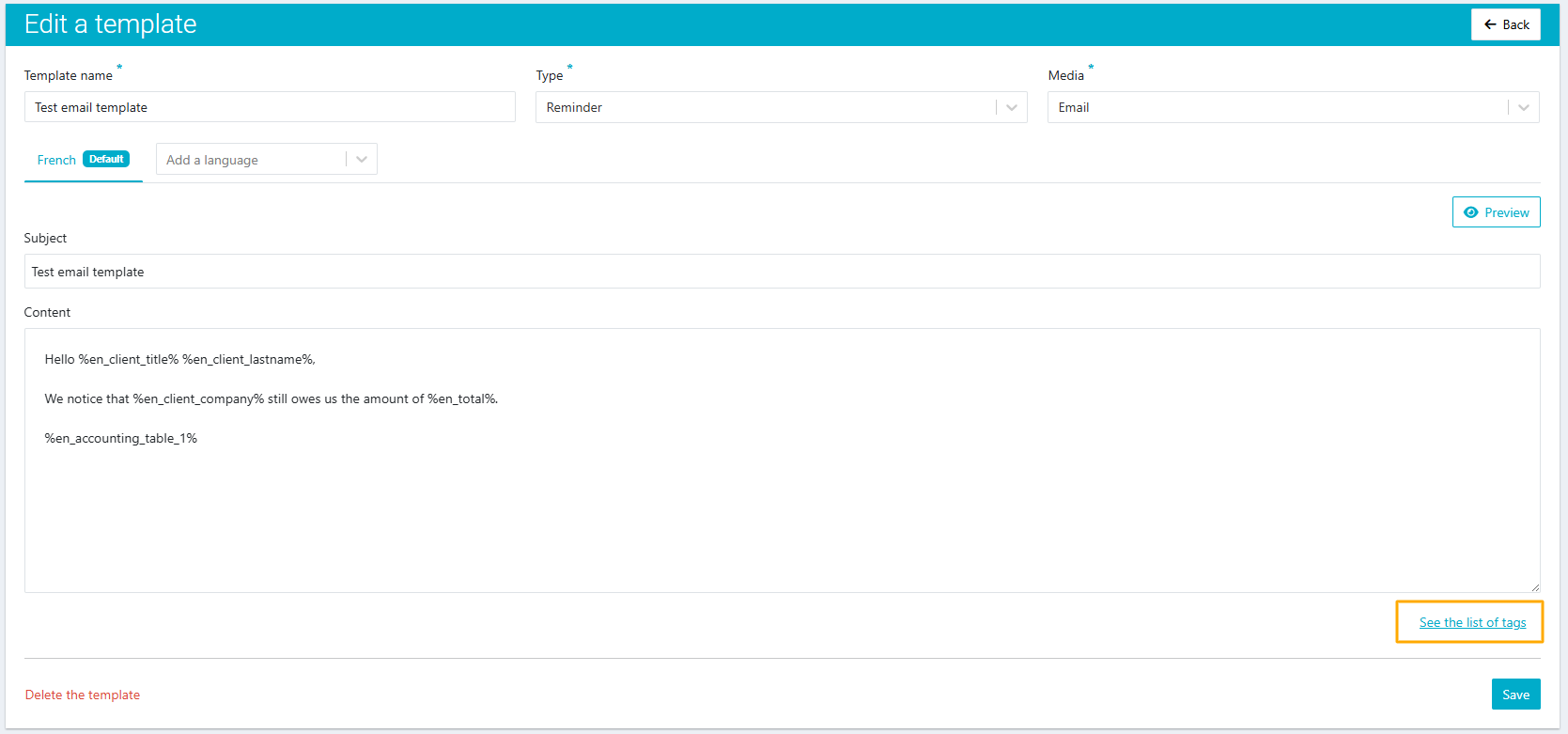
The list of tags is accessible from two locations:
The pop-up for adding/editing a template, the "See the list of tags" link at the bottom of the window redirects you to the list of tags:
The menu Help & Support > List of tags
Was this article helpful?
That’s Great!
Thank you for your feedback
Sorry! We couldn't be helpful
Thank you for your feedback
Feedback sent
We appreciate your effort and will try to fix the article