When you have several PDF invoices to import into Clearnox so they can be attached automatically to your reminders, importing them and manually linking them to accounting entries can be time-consuming.
With bulk import, you can upload all your documents in just a few clicks. Clearnox then analyses the invoices using artificial intelligence and automatically suggests associations with the corresponding clients and accounting entries. This saves you valuable time while keeping you in full control of the process.
Import multiple invoices
Add your documents using the bulk import module.
1. Go to the Monitor > Invoices page.
2. Drag and drop your PDF files into the designated area, or select them from your computer.
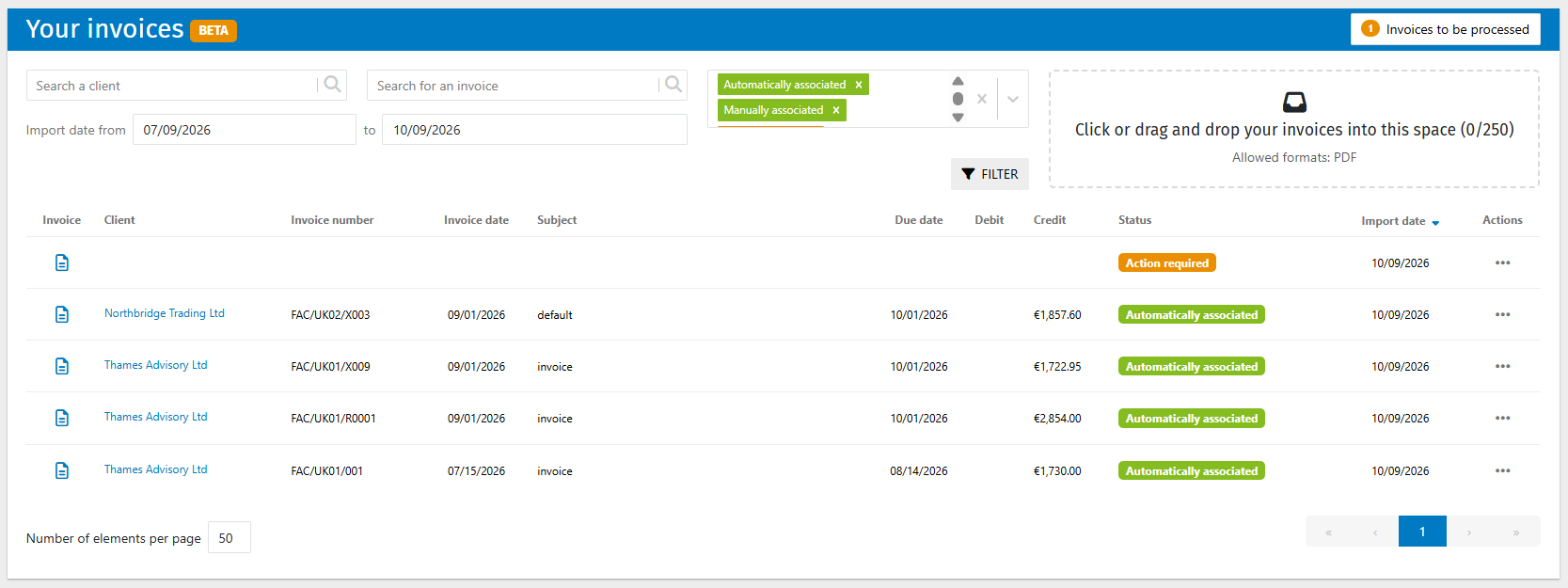
You can import up to 250 PDF files at once, with a maximum size of 5 MB per file. To be analysed and associated automatically, PDFs must contain selectable text. Documents based on an image or a scan that cannot be read using OCR are not compatible with bulk import.
Automatic invoice association
After import, Clearnox analyses the information in each document to suggest an association with the corresponding client and invoice.
The displayed status lets you track the processing of each document:
Automatically associated : Clearnox has identified the corresponding invoice and automatically linked the document.
Action required : you need to take action to complete the document association.
Manually associated : a user has selected or confirmed the association between the document and the invoice.
Duplicated : the document has already been imported into Clearnox.
Invoices to process manually
The Invoices to be processed section contains the documents that require your intervention. Depending on the case, you need to confirm the association suggested by Clearnox or link the document to the correct client and invoice yourself
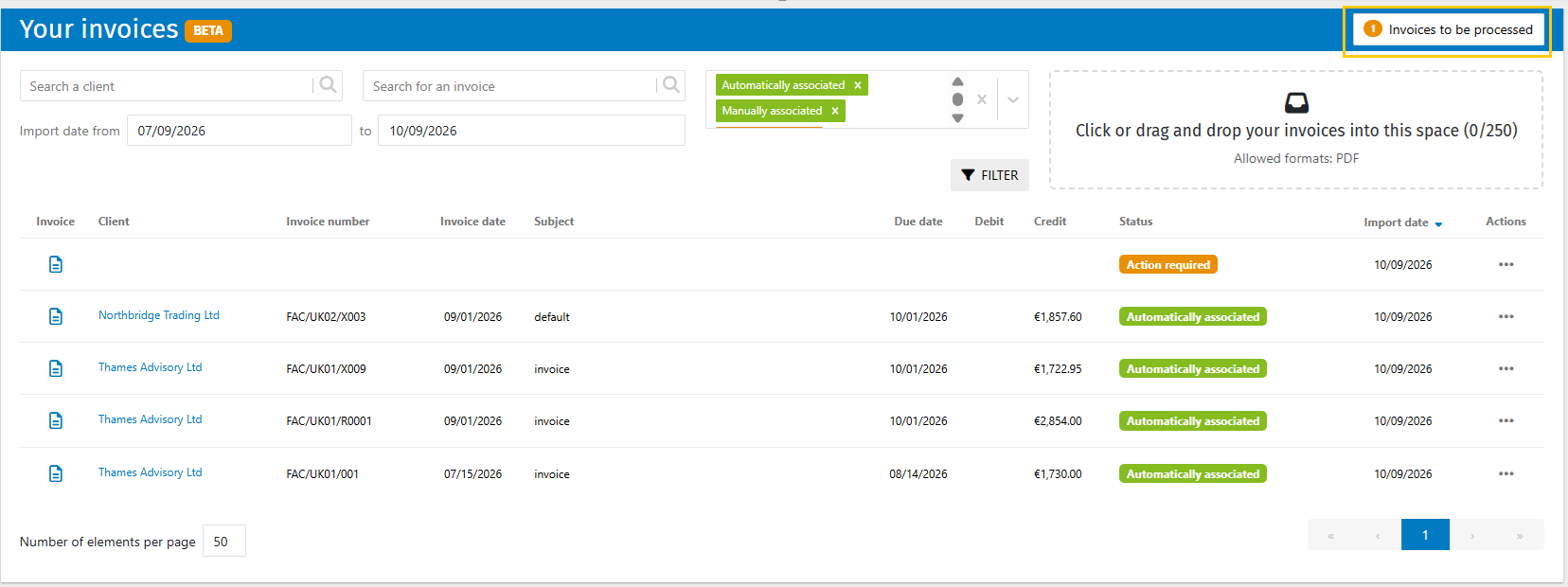
1. Open the Invoices to be processed section.
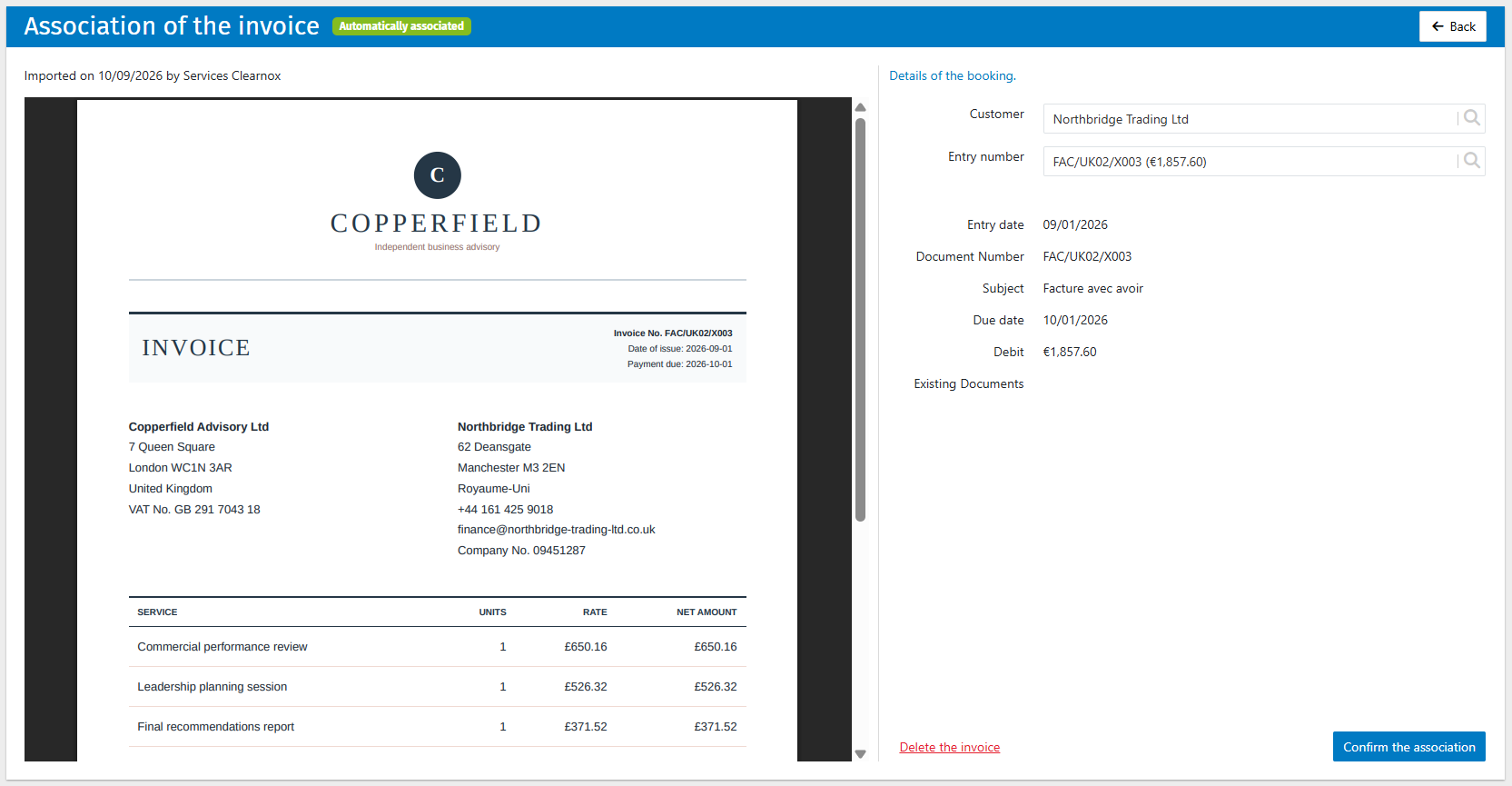
2. Select the client concerned by the document.
3. Select the corresponding invoice from the suggested list.
4. Confirm the association. The document's status changes to Manually associated.
Good to know — Working as a team
Imported documents are visible to all users of the same Clearnox account. One colleague can upload the files, and another can check the AI suggestions, confirm the associations or manually process the documents in Invoices to be processed.
Find your invoices and include them in reminders
Once linked to an accounting entry, each invoice is visible in the client's Account balance in the Invoices column. Click the document icon to view or download it.
To allow your clients to access their invoices from your reminder emails, follow the steps in the article Add invoices to your email reminders.
You can use bulk import on an account where invoices have already been added manually from the client page or sent via the Clearnox API. These methods can be used on the same account: once linked to accounting entries, the invoices can be viewed in the client's account balance
Was this article helpful?
That’s Great!
Thank you for your feedback
Sorry! We couldn't be helpful
Thank you for your feedback
Feedback sent
We appreciate your effort and will try to fix the article