Clearnox lets you send Electronic Registered Delivery (ERE) via AR24, directly from the client page. ERE provides time-stamped proof of deposit and receipt and certifies the contents of the letter. This allows you to keep a record of your debt collection efforts, generally at a lower cost than registered mail sent by post. This type of mailing differs from LRE, which may be required in specific situations.
Clearnox does not charge any additional fees for this service. Mailings sent through this channel are deducted directly from your AR24 subscription.
To use this feature, first activate the AR24 service as described in this article.
Send a reminder to a client via AR24
You are on the client page, have selected the items to include in the reminder, and chosen “AR24” as the communication method.
The first part of the pop-up displays the main fields for the AR24 reminder:
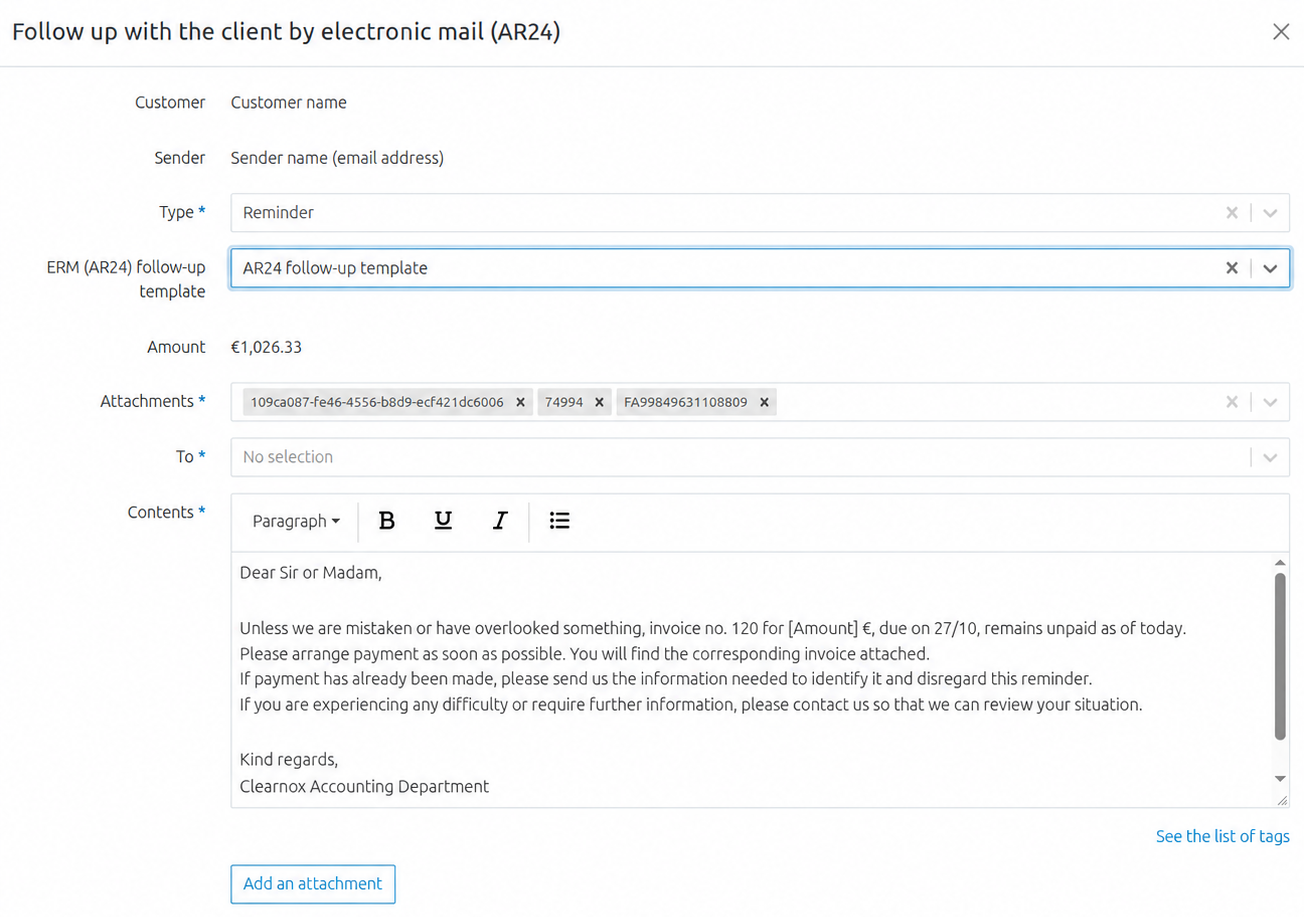
Check that the following fields are filled in correctly:
Client: name of the client you want to remind.
Sender: by default, your username. You can change it if you want to send the reminder on behalf of another user. The email address used will be the one set up in the AR24 configuration.
Type: specify whether this is an advance notice, a reminder, or a thank-you message. This field filters the templates offered in the next step.
ERE (AR24) template: select a template from those configured for the action type selected above.
No AR24 templates are available by default. You must create one in the template settings before you can send an AR24 reminder.Amount : subtotal of the selected items.
Items: details of the items selected from the account balance.
Recipients: enter the email address or addresses of the contacts you want to remind as primary recipients.
Content: the email content is taken from the template selected above. You can edit it using the rich-text editor.
- Attachments: you can attach files to the email sent to the client. As with PDF invoices, you can attach up to 15 files, with a total size limit of 15 MB.
If you want to attach invoices, we strongly recommend attaching them to the items automatically or manually, then adding the “Access your invoices” button to the reminder using tags, as explained here.
The second part of the pop-up lets you include this action in your scenarios:
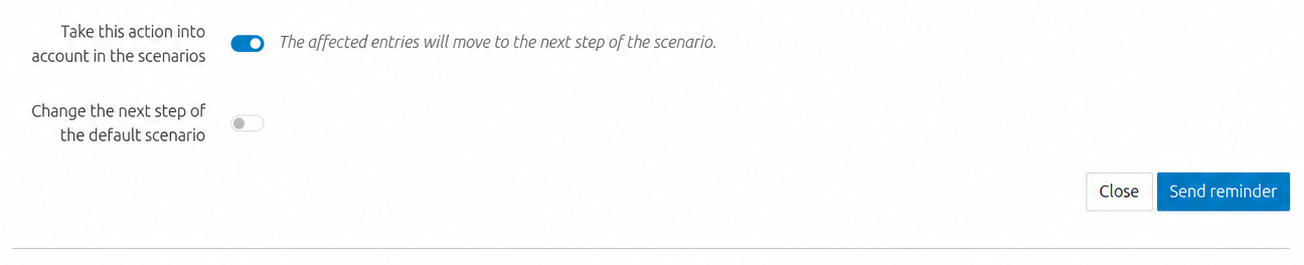
If you choose to include this action in your reminder scenarios, the items concerned will move to the next step in the scenario.
After checking all the fields in the pop-up, select the button to send the reminder to the specified recipients.
A confirmation pop-up will appear. Confirm the action to send the reminder.
For now, AR24 reminders are only available as manual reminders.
When your client opens the letter on AR24, you will receive an email confirming receipt of your ERE. The recipient can also refuse the letter. In that case, the refusal status is visible in Clearnox. To learn about the different statuses that may appear for an ERE sent via AR24, see our article on tracking reminder activities.
To see what your client experiences when receiving and viewing an AR24 ERE, read our dedicated article.
Was this article helpful?
That’s Great!
Thank you for your feedback
Sorry! We couldn't be helpful
Thank you for your feedback
Feedback sent
We appreciate your effort and will try to fix the article